Blog article
- 8 minutes read

- Kiara Saloojee
- DMARC Enthusiast
How to read DMARC reports: What enterprises need to know

How to read DMARC reports - highlights:
- DMARC reports reveal who’s sending email for your domain and whether messages pass/fail SPF and DKIM.
- Raw DMARC reports are XML files, which are hard to interpret manually, so most enterprises use a reporting tool.
- DMARC has two report types: Aggregate (RUA) for daily summaries, and failure (RUF) for message-level troubleshooting.
- To receive reports, publish a DMARC TXT record at
_dmarc.yourdomain.comwith a versionv=DMARC1, a policy (p=), and arua=tag. - Common red flags include unknown senders, legitimate services failing SPF/DKIM, and unexpected volume spikes.
Domain-based Message Authentication, Reporting, and Conformance (DMARC) reports are machine-generated XML files. They show which servers are sending email for your domain, and whether those messages pass or fail Sender Policy Framework (SPF) and DomainKeys Identified Mail (DKIM).
These reports are powerful, but raw XML is dense and difficult to interpret. If you open a DMARC report directly, you’ll usually see thousands of lines of structured data instead of a clear view of what happened, which systems were involved, and what needs to be fixed.
Learning how to read DMARC reports helps you spot domain abuse early, reduce the risk of Business Email Compromise (BEC), and move confidently toward a stronger DMARC policy.
See how Sendmarc turns DMARC reports into clear insights and provides an actionable enforcement plan.
Explaining DMARC reports
DMARC builds on SPF and DKIM. It lets you publish a policy for handling messages that fail these checks and specify where DMARC reports should be sent so you can see how your domain is being used.
DMARC reports summarize whether emails using your domain pass or fail SPF and DKIM checks, and which IP addresses are sending those messages. This insight helps you spot spoofing attempts and configuration issues early, before they affect customers or hurt deliverability.
If you can’t read DMARC reports, you have limited visibility into two important areas. First, you can’t clearly see who’s impersonating your brand. Second, you might not notice when legitimate senders are failing authentication.
Types of DMARC reports: Aggregate (RUA) vs. failure (RUF)
DMARC provides two report types, controlled by tags in your DNS record.
Aggregate:
Aggregate reports are the most common type of DMARC report. They arrive as daily XML summaries from mailbox providers such as Google and Microsoft, showing message volume along with IP addresses and authentication results.
For most companies, aggregate reports are the primary source for ongoing DMARC monitoring and are typically what people mean when they refer to “DMARC reports.”
Failure:
Failure reports are generated for individual messages that fail checks. They include email headers, body, and authentication results, which makes them useful for deeper investigation and troubleshooting.
How to enable DMARC reporting in the DNS
To start receiving DMARC reports, you need a DMARC TXT record in the DNS. The record is published at _dmarc.yourdomain.com and must include the version tag v=DMARC1, a policy such as p=none, and a reporting address. For example, you might direct reports to rua=mailto:[email protected].
You can also add a failure-report address using the ruf tag, for example, ruf=mailto:[email protected], if you want reports for individual messages that fail DMARC.
Once this record is live, receiving systems start sending DMARC reports as XML file attachments to the addresses in your rua and ruf tags. You can open these files in a text editor or browser, but reviewing raw XML files quickly becomes time-consuming.
Why you shouldn’t read DMARC reports manually
In an enterprise environment, domains and third-party senders tend to grow over time, and reviewing raw XML becomes inefficient. When you’re scanning thousands of lines of structured data, it’s easy to miss an alignment issue.
This is why most enterprises use a DMARC reporting tool; it enables them to see the data in clear, visual dashboards.
It also makes it harder to see patterns over time, such as a steady increase in spoofing activity or a gradual decline in DKIM pass rates.
DMARC aggregate report data
1. Header information
This section helps you confirm where the report came from and what time period it covers.
Fields you’ll see:
- Organization name: The report generator, typically a mailbox provider or large email receiver
- Contact information: An email address or similar follow-up details
- Date range: The time window covered
- Report ID: A unique identifier for the report
2. Policy evaluated
This section includes:
- Domain: The domain the policy applies to
- Policy: p=none, p=quarantine, or p=reject
- Subdomain policy:
sp=value, if set
3. SPF and DKIM alignment
You will see two fields:
- SPF result: Whether SPF passed or failed
- DKIM result: Whether DKIM passed or failed
Common red flags and how to fix them
When you review DMARC reports regularly, a few patterns tend to repeat. These three are the most common.
Suspicious or unrecognized senders
If you see sending sources you can’t link to a known business system, treat them as suspicious until proven otherwise. This can be spoofing, shadow IT, or a sender that was never documented.
Check who owns the IP address and whether it matches any platforms you use. If it isn’t legitimate, plan to block it through stronger DMARC enforcement once you’re confident that critical communications won’t break.
Legitimate services failing SPF or DKIM
If a known service appears in reports but fails SPF or DKIM checks, it usually points to a configuration issue. SPF may be missing an authorized sender, or DKIM may not be set up correctly.
Work with an expert team to update SPF, enable DKIM signing, and ensure the protocols align with the domain shown in the “From” address.
Unusually high email volume
If email volume is much higher than expected, or spikes suddenly, it’s worth investigating even if the sender looks familiar. Spikes can come from planned campaigns, system changes, or abusive traffic.
First, confirm whether the increase matches a known activity. If it doesn’t, review the sources behind the spike and focus on traffic that’s failing checks or coming from unexpected infrastructure.
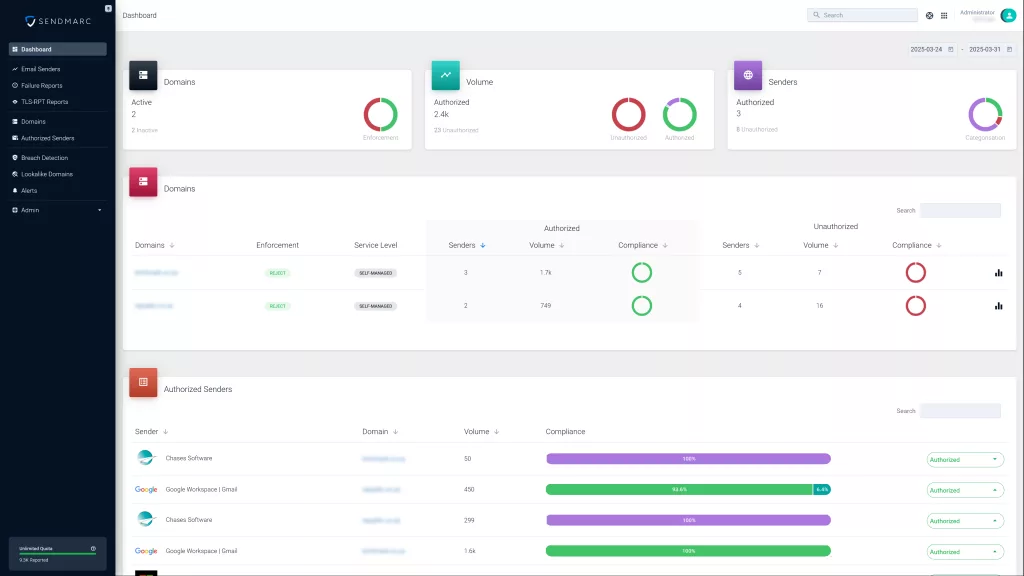
How Sendmarc makes DMARC reporting easy for enterprises
Sendmarc turns raw DMARC reports into clear, actionable insights.
In large, distributed environments, teams often lose track of how many tools send email on behalf of the organization. By providing a consolidated view of sending sources, Sendmarc helps you improve oversight, reduce shadow IT, and keep SPF and DKIM configurations consistent across departments and regions.
Sendmarc also helps protect critical communications with a staged approach to enforcement. As you move from p=none to p=quarantine and then p=reject, you can use the dashboards to confirm which billing, notification, and marketing systems are authenticating correctly before tightening policy. This reduces the risk of legitimate messages being filtered or blocked.
For security and governance teams, Sendmarc supports credible reporting trails that help demonstrate progress to audit and risk committees, executives, and boards.
See your reports in Sendmarc’s enterprise-grade DMARC management platform and get a guided plan to move safely toward stronger enforcement.